MIS Portal Haryana – School Education Management System
MIS Portal Haryana is the official Management Information System launched by the Department of School Education, Government of Haryana. The portal provides a unified digital platform for education officers, teachers, and students to access technology systems and manage academic and administrative tasks efficiently.
The Saksham Haryana MIS Portal serves as a comprehensive solution for all stakeholders in the School Education Department including students, teachers, and department employees. Each user has a dedicated login to access services related to their roles and responsibilities.
What is MIS Portal Haryana?
MIS Portal, also known as OneSchool Portal, is a centralized education management system that digitizes school administration and academic processes across Haryana. The portal enables seamless communication between different levels of the education department and provides real-time access to critical information.
The system facilitates profile management, attendance tracking, transfer processes, merit point calculation, and various other administrative functions required for efficient school management.
| Aspect | Details |
|---|---|
| Portal Name | MIS Portal Haryana (OneSchool Suite) |
| Launched By | Department of School Education, Government of Haryana |
| Official Website | mis.oneschoolsuite.com |
| Purpose | Education management and administration |
| Users | Teachers, Education Officers, Students, Department Employees |
| Key Features | Profile Management, Attendance, Transfers, Academic Records |
| Login Type | Role-based access for different stakeholders |
MIS Portal Login Process
Accessing the MIS Portal requires authorized credentials provided by the Department of School Education. The login process is straightforward and secure.
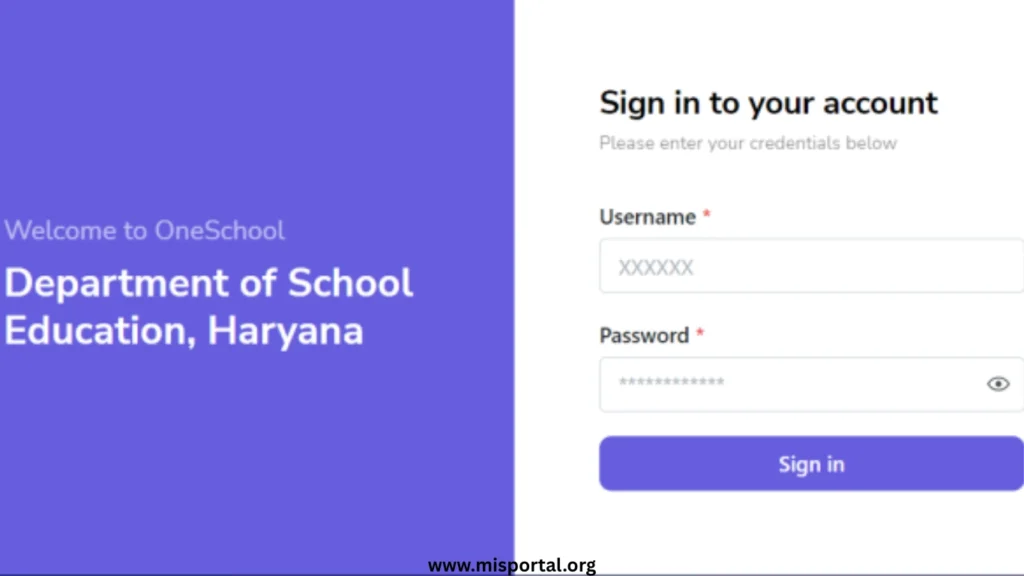
Step 1: Visit the Official Portal Open your web browser and navigate to https://mis.oneschoolsuite.com/
Step 2: Enter Login Credentials Enter your User ID and Password provided by the education department. These credentials are unique to each user based on their role.
Step 3: Complete Authentication After entering credentials, click the login button to access your dashboard. First-time users may be required to change their password for security purposes.
Step 4: Access Dashboard Once logged in, you will see your personalized dashboard with access to various services and features based on your user role.
Services Available on Saksham Haryana MIS Portal
The MIS Portal offers comprehensive services for different stakeholders in the education system.
Profile Management Users can view, verify, and request corrections to their personal and service profiles. This includes personal details, address information, contact details, education qualifications, family information, and health records.
Profile Verification The portal requires periodic verification of profile data to ensure accuracy. Users must review all sections including personal details, service records, health information, family details, and award information.
Profile Correction Requests If any information is incorrect or outdated, users can submit correction requests through the portal. These requests are reviewed and approved by the concerned authorities.
Service Profile Management Teachers and education officers can view their complete service history including current and previous appointments, transfers, promotions, and posting details.
Academic Services Access to academic records, examination data, student information, attendance management, and curriculum-related resources.
Administrative Functions Various administrative tasks including leave applications, transfer requests, merit point tracking, and official communication.
How to Verify and Update Profile on MIS Portal
Profile verification is a mandatory process for all users to ensure data accuracy and facilitate proper administration.
Profile Verification Steps
Step 1: Login to MIS Portal Access the portal at https://mis.oneschoolsuite.com/ using your credentials.
Step 2: Navigate to Profile Section Click on “Profile Correction Request” button on your dashboard, then select “Update and Verify Profile” to proceed.
Step 3: Select Profile Type Choose between Personal Profile or Service Profile from the left sidebar menu.
Step 4: Verify Personal Profile Review all sections systematically:
- Personal Details (Name, Date of Birth, Gender, etc.)
- Address Details (Current and Permanent Address)
- Contact Details (Mobile Number, Email)
- Identity Details (Aadhar, PAN, etc.)
- Health Details (Disability, Chronic Disease, if any)
- Education Details (Qualifications and Certificates)
- Family Details (Information about family members)
- Spouse Details (If applicable)
- Award Details (Honors and recognitions received)
Step 5: Navigate Through Sections Use the “Next” button at the bottom right to move forward and “Previous” button to go back. Carefully verify each section before proceeding.
Step 6: Final Verification After reviewing all sections, click the “Final Verification” button. A confirmation popup will appear – select the checkbox and click “Confirm” to complete the verification process.
Step 7: Download Profile Once verified, a green tick will appear beside the Personal Profile button. You can download or print your profile using the Print button at the top right corner.
Service Profile Verification
Step 1: Select Service Profile Click on “Service Profile” button from the left sidebar menu.
Step 2: Review Service Details Verify all information regarding your current appointment, previous postings, transfers, promotions, and service history.
Step 3: Complete Verification Click “Final Verification” button at the bottom of the screen, confirm in the popup, and your service profile will be verified.
Note: Service profile data is synced automatically every 2 days. For any discrepancies, contact the concerned authority for corrections.
How to Submit Profile Correction Request
If you find any incorrect information in your profile, you can submit a correction request through the portal.
Step 1: Access Profile Change Request Click on “Profile Change Request” button on the left sidebar after logging into the portal.
Step 2: Add Correction Request Select “Add Correction Request” button present at the top right corner of the screen.
Step 3: Select Section to Edit Choose the section that requires correction – Basic Profile, Health, Family Details, Spouse, Awards, or Contact.
Step 4: Edit Required Fields Make necessary changes in the selected section. Ensure all information is accurate and complete.
Step 5: Upload Supporting Documents For certain changes like health details (disability or chronic disease), you must upload valid certificates:
- Disability Certificate: Issued by District Civil Surgeon with percentage of impairment
- Chronic Disease Certificate: Issued by AIIMS (including Haryana branches), PGI Rohtak, PGI Khanpur Kalan, Kalpana Chawla Medical College Karnal, or PGI Chandigarh
Step 6: Verify and Submit Check the verification checkbox at the bottom of the page and click “Save” to create the correction request.
Step 7: Track Request Status Your correction request will appear in the summary report with status indicators (Pending, Approved, or Rejected). Click “View Changes” in the Action column to check the current status.
Canceling a Correction Request
If you initiated a correction request by mistake or no longer need the change, click the “Cancel Request Process” button at the top right corner to return to the previous screen without saving changes.
Important Features of MIS Portal
Merit Points Calculation The portal maintains accurate health records which directly affect merit points for various departmental processes like transfers and promotions.
Real-Time Data Sync Service profile data is automatically synchronized every 2 days to reflect the latest updates from departmental records.
Document Upload Users can upload necessary certificates and supporting documents directly through the portal for verification purposes.
Status Tracking All submitted requests can be tracked with real-time status updates showing whether they are pending, approved, or rejected.
Print and Download Verified profiles can be downloaded or printed directly from the portal for official use and record-keeping.
Role-Based Access Different stakeholders have access to features relevant to their roles, ensuring data security and appropriate access control.
Profile Sections Explained
| Section | Information Included |
|---|---|
| Personal Details | Name, Father’s Name, Date of Birth, Gender, Category, Religion |
| Address Details | Current Address, Permanent Address, District, State, PIN Code |
| Contact Details | Mobile Number, Email ID, Alternative Contact |
| Identity Details | Aadhar Number, PAN Card, Voter ID, Other ID Proofs |
| Health Details | Disability (if any), Chronic Disease, Vital Measurements |
| Education Details | Academic Qualifications, Professional Degrees, Certificates |
| Family Details | Information about immediate family members |
| Spouse Details | Spouse Name, Occupation, Health Status |
| Award Details | Honors, Awards, Recognitions received |
| Service Profile | Current Posting, Previous Appointments, Transfers, Promotions |
Guidelines for Health Details Updates
Health information is particularly important as it directly affects merit point calculation and departmental benefits.
Disability Information If adding new disability information, provide:
- Disability name and type
- Percentage of impairment
- Valid certificate from District Civil Surgeon
Chronic Disease Information For chronic disease updates, upload certificates issued by:
- AIIMS (All India Institute of Medical Sciences) including Haryana branches
- PGI Rohtak (Post Graduate Institute of Medical Sciences)
- PGI Khanpur Kalan
- Kalpana Chawla Medical College, Karnal
- PGI Chandigarh
Certificates from other institutions will not be accepted for chronic disease verification.
Contact Information
| Detail | Information |
|---|---|
| Department | Department of School Education, Government of Haryana |
| Portal Name | MIS Portal (OneSchool Suite) |
| Official Website | https://mis.oneschoolsuite.com/ |
| For Technical Support | Contact your District Education Office or School Administration |